
Excel Formulas vs Automation: The Smarter Way to Save Time and Build Trust
Still using Excel formulas for every single task in your business? There’s a faster, smarter way to work. If you’re a solo entrepreneur, consultant, or small business owner juggling client work, marketing, and daily operations, you know how much time Excel tasks can consume. From tracking leads to generating monthly reports, spreadsheets are essential – but they can also drain your energy when done manually.
The good news? Excel automation takes you beyond basic formulas, transforming repetitive tasks into self-running systems. This shift doesn’t just save time – it builds trust with clients through faster, error-free reporting and gives you breathing room to focus on growth. Let’s explore how understanding the difference between Excel formulas and automation can revolutionize your workflow.
Understanding Excel Formulas and Automation
Before diving into which tool serves you best, it’s important to understand what each one actually does.
What Excel Formulas Do Best
Excel formulas are your go-to solution for quick calculations and data lookups. Think of them as smart helpers you call on whenever you need instant insights. Common examples include:
- SUM for adding up monthly expenses
- VLOOKUP for finding client details across multiple sheets
- IF statements for conditional calculations like payment status tracking
- AVERAGE for analyzing sales performance
These formulas excel (pun intended) at one-time or occasional tasks. They’re perfect when you need to answer a specific question or perform a calculation on the spot. For a B2B consultant, Excel formulas might help calculate invoice totals, track payment deadlines, or analyze which services generate the most revenue.
What Excel Automation Really Means
Excel automation goes several steps further. Instead of manually entering formulas each time you need them, automation makes Excel work independently in the background. This includes:
- Macros that record and replay actions with a single button click
- Automated data imports from business platforms like IndiaMART or Google Forms
- Self-updating reports that refresh whenever new data arrives
- Scheduled email reports sent automatically to clients or team members
Automation turns routine manual work into streamlined workflows. Imagine pulling 50 new leads from a business directory – would you rather copy-paste each one individually, or have them automatically populate your tracking sheet? That’s the power of automation.
Key Differences Between Excel Formulas and Automation
Manual vs Self-Running Processes
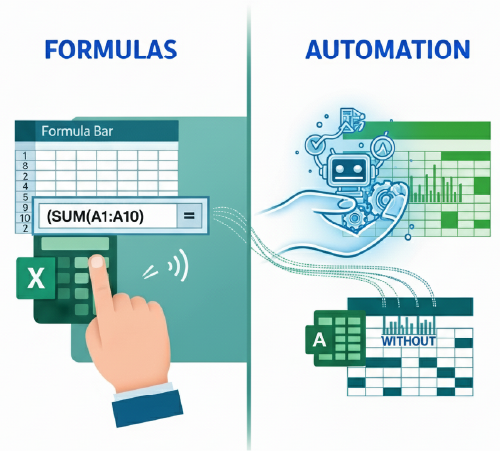
The fundamental difference is simple: Excel formulas require you to set them up each time, while automation runs on its own once configured. With formulas, you’re actively working in Excel. With automation, Excel works for you.
The “Hidden Cost” of Doing Everything Manually
Many small business owners don’t realize how much time they lose to repetitive Excel tasks. Updating the same formulas weekly, copying data between sheets, reformatting reports before client meetings – these “small” tasks add up to hours every month.
Beyond time, there’s the mental load. Remembering to update spreadsheets, worrying about copy-paste errors, and manually checking data accuracy creates unnecessary stress. Automation eliminates this friction.
Real-World Example: Consultant Tracking Client Payments
Consider a business consultant managing 15 active clients:
Using Excel Formulas Only:
- Manually enters each payment received
- Uses formulas to calculate outstanding balances
- Updates payment status indicators one by one
- Spends 2-3 hours monthly on payment tracking
Using Excel Automation:
- Payment data automatically imports from accounting software
- Formulas calculate balances automatically when new data arrives
- Conditional formatting highlights overdue payments instantly
- Automated reminder emails sent to clients with pending invoices
- Reduces monthly tracking time to 30 minutes
The consultant still uses Excel formulas for calculations, but automation handles the repetitive data entry and reporting workflow.
When to Use Formulas vs When to Automate
Ideal Scenarios for Each
Choose Excel formulas when:
- You need a one-time calculation or analysis
- The task is unique and won’t repeat regularly
- Data changes infrequently
- The spreadsheet is simple and small
Choose Excel automation when:
- You perform the same task weekly or monthly
- You’re copying data from one source to another repeatedly
- Reports need to be generated on a schedule
- Human error in data entry is a concern
Decision Checklist
Ask yourself these questions:
- Do I do this task more than twice monthly? – Consider automation
- Does this involve copying data from elsewhere? – Automate it
- Would a mistake here affect client trust? – Automation reduces errors
- Could a client benefit from faster reporting? – Automation delivers speed
- Am I spending more than an hour monthly on this? – Time to automate
Why Excel Automation Saves More Time
Real-World Time Savings
Here’s a practical comparison showing the efficiency difference:
| Task | Using Formulas Only | Using Automation | Time Saved |
|---|---|---|---|
| Pulling 50 new leads from B2B portal | 45 min manual copy-paste + formula setup | 5 min automated import | 40 min/week |
| Monthly client progress reports | 2 hours updating cells & formulas | 15 min one-click generation | 1 hr 45 min/month |
| Inventory tracking updates | 30 min recalculating formulas | Automated data sync + alerts | 2 hours/month |
That’s over 6 hours saved monthly just from these three tasks. For a solo entrepreneur, that’s nearly a full workday back every month.
How It Builds Trust with Clients
Professional reputation depends on reliability. When you can send accurate reports within minutes of a client request instead of saying “I’ll get back to you tomorrow,” you demonstrate:
- Responsiveness that sets you apart from competitors
- Accuracy through reduced manual errors
- Professionalism with polished, consistent reporting
- Confidence in your business processes
Indian B2B clients especially value punctuality and precision. Automation helps you deliver both consistently.
Small Business Case Example
A Mumbai-based business consultant was manually tracking leads from three different sources: IndiaMART inquiries, website contact forms, and networking event follow-ups. She spent 3-4 hours weekly copying information into Excel, categorizing leads, and updating status.
After implementing basic Excel automation with smart Excel tools for small business owners, her workflow transformed:
- Leads from all three sources automatically populate one master sheet
- Status updates trigger color-coded alerts
- Weekly summary reports generate automatically every Monday morning
Result? She reclaimed 12+ hours monthly to focus on client calls and business development.
How to Start Automating in Excel (Without Coding)
Easy Entry Points
You don’t need to be a programmer to start automating. Here are beginner-friendly starting points:
- Record a Simple Macro
- Identify one repetitive task (like formatting a report)
- Use Excel’s built-in macro recorder to capture your actions
- Play it back with one button click
- Automate Email Reports
- Set up Excel to automatically email your weekly sales summary
- No more remembering to send updates manually
- Import Data Automatically
- Connect Excel to Google Sheets, business directories, or CRM tools
- Fresh data flows in without copy-pasting
Tools & Integrations
Several accessible tools make automation easier:
- Power Query: Built into Excel, pulls data from various sources automatically
- Power Automate: Microsoft’s tool for creating automated workflows
- Zapier: Connects Excel with 3,000+ business apps without coding
Microsoft provides Microsoft’s official guide on Excel automation that walks through these features step-by-step.
Simple Steps to Experiment
Week 1 Challenge: Pick one task you do every week
- Write down exactly what steps you take
- Ask yourself: “Could Excel do this automatically?”
- Try recording a macro or setting up a simple automation
Start small. Even automating one annoying task proves the concept and builds your confidence. For more inspiration, check out these real-life Excel use cases for entrepreneurs.
The Marketing Edge of Working Smarter
How Automation Enhances Business Credibility
In competitive B2B markets, small details differentiate you from others offering similar services. When your proposals include up-to-date data visualizations, when you respond to client questions with instant insights, and when your reporting is consistently professional – clients notice.
Reliable data equals trust. Trust equals long-term client relationships and referrals.
Connect Excel Insights to Marketing Action
Automated Excel dashboards don’t just save time – they inform better business decisions:
- Identify your best-performing services through automated revenue tracking
- Spot trends in client acquisition with automated lead source analysis
- Monitor cash flow patterns to plan marketing investments wisely
- Track campaign performance to double down on what works
When decision-making data updates automatically, you spend less time gathering information and more time acting on it.
Start Small, Grow Fast
You don’t need to automate everything overnight. Begin with the task that frustrates you most. Maybe it’s that weekly report you dread preparing, or the lead tracking that never feels current. Automate that one thing. Experience the relief. Then tackle the next task.
Each small automation compounds over time, gradually transforming your entire workflow from reactive to proactive.
Conclusion
Excel formulas are undeniably powerful for calculations and quick insights – but Excel automation is genuinely transformational for busy small business owners and consultants. While formulas help you work faster in the moment, automation creates systems that work continuously in the background, freeing your time and mental energy for client relationships and business growth.
The beauty of this approach is its accessibility. You don’t need expensive software, technical expertise, or massive time investments to get started. One small automation this week can save you hours next month. A few strategic automations can reclaim entire workdays over the year.
Remember: you’re not just saving time – you’re building a more professional, reliable, trustworthy business presence. And in competitive markets, that advantage matters.
Ready to take the first step? Pick one repetitive Excel task today and explore how to automate it. Small changes create big wins.
You don’t have to do everything alone. Working smarter with Excel formulas and automation can be your quiet advantage on the path to success.
Written by Muhammed
Muhammed is a graphic designer and virtual support professional with hands-on experience helping small businesses grow through smart marketing and design. He shares practical strategies that save time, build trust, and See how he helps entrepreneurs succeed without overwhelm.