

Excel for Inventory Management: Smart, Simple Systems for Small Businesses
Running a small business means juggling countless responsibilities – and tracking inventory, managing invoices, and monitoring expenses can feel overwhelming. You’ve probably looked at expensive business management software and wondered if you really need to spend hundreds or thousands of dollars just to stay organized. Here’s the truth: you already have access to one of the most powerful business tools available, and it’s likely sitting right on your computer.
Excel for Inventory Management is more than just spreadsheets – it’s a complete business command center that gives you total control over your operations without the hefty subscription fees. Whether you’re a solo entrepreneur, freelancer, or small retailer, Excel offers the flexibility and automation you need to run your business smartly and efficiently.
Why Excel Is the Smartest Starting Point for Small Business Management
The Hidden Power of Excel for Solo Entrepreneurs and Freelancers
When you’re bootstrapping your business, every dollar matters. Excel for Inventory Management delivers enterprise-level functionality at zero additional cost. Unlike cloud-based subscription services that lock you into monthly payments, Excel is a one-time investment that works offline – meaning you’re never locked out of your critical business data during internet outages.
Excel’s real strength lies in its complete customization. You can track product inventory, create professional invoices, monitor sales patterns, analyze profit margins, and manage expenses all in one integrated workbook. As your business evolves, your Excel system grows with you – no waiting for software updates or paying for premium features.
Why Expensive Inventory Tools Often Overcomplicate Simple Business Needs
Many small business owners assume they need specialized inventory software with barcode scanning, multi-warehouse tracking, and complex integrations. But here’s what most entrepreneurs actually need: a simple system that shows what’s in stock, what’s selling, and when to reorder.
Fancy software often comes with features you’ll never use, steep learning curves, and ongoing costs that eat into your profits. Excel gives you exactly what you need – nothing more, nothing less – and puts you in complete control of your data structure and processes.
The “Total Control” Advantage – Own Your Data, Customize Everything
With Excel, you own your data completely. There’s no vendor lock-in, no proprietary file formats, and no risk of losing access if a software company changes pricing or goes out of business. You can modify templates, add tracking categories, or restructure your entire system instantly – without submitting support tickets or waiting for feature requests.
This control extends to privacy and security too. Your sensitive business information stays on your computer or your chosen cloud storage – not on a third-party server you don’t control.
Setting Up Excel for Inventory Management (Step-by-Step)
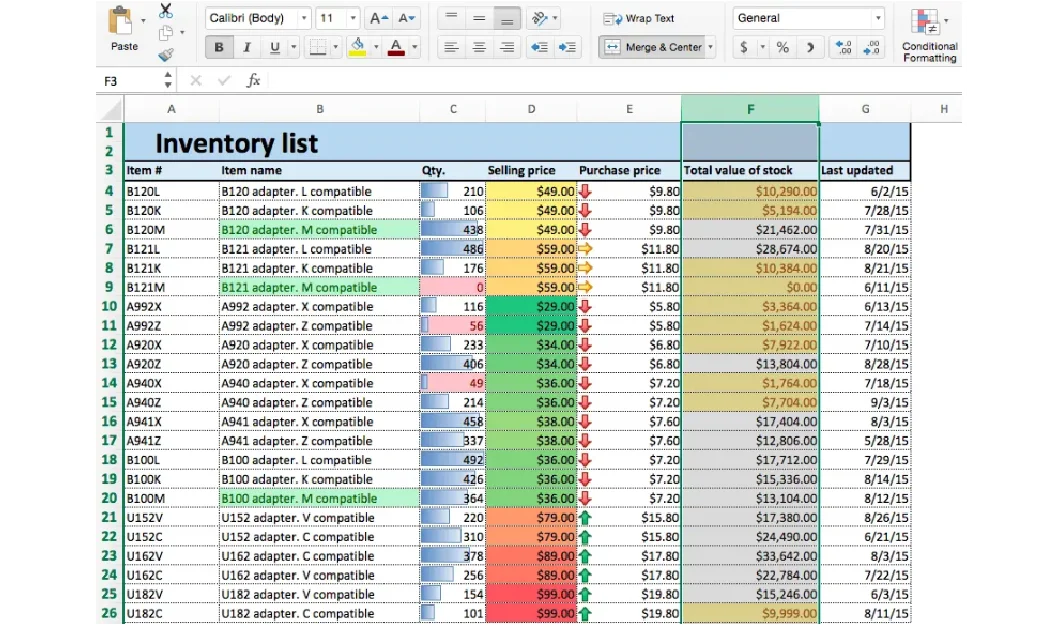
Create Your First Inventory Tracker
Building an effective Excel for Inventory Management system starts with the right structure. Open a new workbook and create these essential columns:
- Item Name – Clear product description
- SKU – Unique stock keeping unit code
- Current Quantity – Real-time stock count
- Cost Per Unit – What you paid for each item
- Selling Price – Your retail price
- Reorder Level – Minimum quantity before restocking
- Total Value – Automated calculation of inventory worth
This simple framework gives you complete visibility into your stock levels and tied-up capital.
Automate Totals and Track Real-Time Stock Value
Here’s where Excel’s power really shines. In your Total Value column, use this simple formula: =Current Quantity * Cost Per Unit. This instantly calculates how much money you have invested in each product line.
At the bottom of your Total Value column, add a SUM formula to see your total inventory investment at a glance. This real-time calculation helps you make smarter purchasing decisions and understand your working capital needs.
For even more insight, add a Profit Margin column using: =(Selling Price - Cost Per Unit) / Cost Per Unit * 100. Now you can instantly see which products deliver the best returns.
Add Conditional Formatting for Low-Stock Alerts
Never run out of bestselling items again with automated visual alerts. Select your Current Quantity column, then apply conditional formatting to highlight cells in red when stock drops below your reorder level.
This visual system eliminates the need to manually check inventory daily. One glance at your spreadsheet tells you exactly which items need immediate attention – saving hours of manual tracking time.
Bonus Tip: Use a “Last Updated” Column to Maintain Accuracy
Add a Last Updated column to track when inventory counts were verified. This simple addition builds accountability and helps identify discrepancies before they become costly problems. You can use Excel’s TODAY() function to automatically timestamp updates.
Building Professional Invoices and Billing Systems in Excel
Simple Structure for Professional Invoices
Creating polished invoices in Excel is straightforward and gives you complete design control. Start with these essential elements:
- Your business information (name, logo, address, contact details)
- Client information (company name, billing address)
- Invoice essentials (unique invoice number, date issued, payment terms)
- Itemized service/product list with quantities and rates
- Clear totals including subtotal, taxes, and final amount due
Download free Microsoft Excel small business templates to jumpstart your invoice design, then customize for your brand.
Automate Tax and Total Calculations with Formulas
Use simple formulas to eliminate manual calculation errors. For line items: =Quantity * Rate. For your subtotal, sum all line item totals. Then calculate tax: =Subtotal * Tax Rate. Your final total becomes: =Subtotal + Tax.
These automated calculations ensure accuracy and save time on every invoice you create.
Keep Invoice Numbering Consistent and Professional
Implement a systematic numbering scheme like “INV-2025-001” and increment sequentially. This professional approach makes payment tracking easier and demonstrates organizational competence to clients. Use Excel’s AutoFill feature to automatically continue your numbering sequence.
Customization Tricks – Discounts, Tax Variations, and Auto Totals
Excel shines when you need flexibility. Add discount calculations using percentage formulas, create different tax rates for various product categories, or build tiered pricing that adjusts automatically based on quantity. Use IF statements to apply volume discounts: =IF(Quantity>10, Rate*0.9, Rate) gives 10% off for orders over 10 units.
Connecting Sales, Payments, and Expense Tracking
How to Link Sheets for Smarter Tracking
Transform Excel into an integrated business intelligence system by linking multiple worksheets. Create separate tabs for Inventory, Sales, Invoices, and Expenses – then connect them with formulas that automatically update across sheets.
For example, when you record a sale on your Sales sheet, use formulas to automatically reduce inventory counts on your Inventory sheet. This real-time synchronization prevents overselling and maintains accurate stock levels without double entry.
Create Simple Dashboards for Cash Flow and Profits
Build a Dashboard sheet that pulls key metrics from all your other tabs. Use formulas to display:
- Total inventory value
- Outstanding invoice amounts
- Monthly sales totals
- Profit margins by product category
- Expense breakdowns by type
This single-view dashboard gives you instant business insights without digging through multiple sheets.
Use Conditional Formatting for Quick Payment Insights
Apply color-coding to your payment tracking: green for paid invoices, yellow for approaching due dates, and red for overdue accounts. This visual system makes it immediately obvious which clients need follow-up, helping you maintain healthy cash flow.
Visualize Data with Basic Charts and Summaries
Excel’s charting tools transform raw data into actionable insights. Create a simple bar chart showing your top-selling products, a line graph tracking monthly revenue trends, or a pie chart breaking down expense categories. These visuals help you spot patterns and make data-driven decisions quickly.
Excel Shortcuts and Time-Savers Every Business Owner Should Know
Keyboard Shortcuts That Speed Up Daily Tracking
Master these time-saving shortcuts:
- Ctrl+C / Ctrl+V – opy and paste data instantly
- Ctrl+Z – Undo mistakes immediately
- Ctrl+Arrow Keys – Navigate quickly to data edges
- Ctrl+; – Insert today’s date
- F4 – Repeat last action
These simple commands save hours over time and make Excel feel effortless.
Use Data Validation & AutoFill to Prevent Entry Errors
Data validation creates dropdown lists that eliminate typos and maintain consistency. Set up product category lists, client name selections, or payment status options – ensuring data integrity across your entire system.
AutoFill recognizes patterns and continues sequences automatically. Type “INV-001, INV-002” and Excel completes the rest. Same for dates, making weekly or monthly tracking periods effortless to set up.
How to Use Microsoft’s Free Templates and Pivot Tables Effectively
Don’t reinvent the wheel – Microsoft offers professionally designed templates for inventory tracking, invoicing, and expense management. Download these free resources and customize them for your specific business needs.
Pivot tables might sound intimidating, but they’re incredibly powerful for analyzing your data. Use them to quickly answer questions like “Which products generated the most revenue last quarter?” or “What’s my average sale by customer type?” These insights inform smarter business decisions.
When and How to Upgrade Beyond Excel
Signs You’ve Outgrown Excel’s Limits
Excel for Inventory Management works beautifully for most small businesses, but consider upgrading when you’re:
- Managing thousands of SKUs across multiple locations
- Need real-time collaboration with team members in different locations
- Require direct integration with e-commerce platforms or POS systems
- Processing hundreds of transactions daily
In these scenarios, dedicated business management software might justify the investment.
Smoothly Transitioning Your Excel Data to New Software
When you do upgrade, your Excel foundation makes transitions smooth. Most business management platforms can import Excel data directly, so none of your hard work goes to waste. The organizational skills and data structure knowledge you’ve developed translate perfectly to any software system.
Why Excel Mastery Gives You an Edge for Future Growth
Understanding how to structure data, create formulas, and build integrated systems gives you a competitive advantage regardless of what tools you eventually use. These skills apply universally – from basic spreadsheets to advanced business intelligence platforms.
Final Thoughts – Start Simple, Grow Smart
You don’t need expensive software or complex systems to run a professional business. Excel for Inventory Management gives you everything needed to track stock, create invoices, monitor sales, and gain valuable business insights – all without monthly subscription fees or steep learning curves.
Start small. Pick one system – maybe inventory tracking or invoice creation – and build from there. Master the basics before adding complexity. Remember, every successful business started with simple processes and grew over time.
The goal isn’t using the fanciest tools – it’s building systems that help your business run smoothly and profitably. Excel provides exactly that foundation, with complete flexibility to customize and scale as you grow.
Whether you’re a freelance consultant tracking client projects, a small retailer managing product inventory, or a service provider creating professional invoices, Excel delivers the power and versatility you need. Best of all, you can implement these systems today – no additional purchases or steep learning curves required.
Ready to take your business organization to the next level? Building effective systems shouldn’t feel overwhelming. If you’re looking for support implementing Excel workflows or developing processes that save time while boosting profitability, my strategic business support services can help. Because running a successful business doesn’t mean doing everything alone – sometimes the smartest step is getting the right support at the right time. Small improvements in organization and tracking make big differences in business growth. Start today, and watch your business transform.
As discussed in my previous article about Why Blog Writing Is Important for Growing Your Website, consistent, valuable content helps attract and retain customers – and having your business systems organized in Excel gives you more time to focus on growth strategies that matter.
Written by Muhammed
Muhammed is a graphic designer and virtual support professional with hands-on experience helping small businesses grow through smart marketing and design. He shares practical strategies that save time, build trust, and See how he helps entrepreneurs succeed without overwhelm.