

Excel for Business: The Simple Way to Stay Organized and Save Time Daily
Running a small business often feels like managing a dozen spinning plates simultaneously. Between tracking client deliverables, monitoring expenses, managing inventory, and staying on top of deadlines, the administrative burden can quickly become overwhelming. But here’s the truth: you don’t need expensive specialized software to take control of your operations. Excel for business offers everything you need to transform daily chaos into organized efficiency – and you probably already have it installed on your computer.
If you’re a solo entrepreneur, freelancer, or small business owner feeling buried under administrative tasks, this guide will show you exactly how to leverage Excel’s powerful features to save time, make smarter decisions, and finally breathe easier.
Why Excel for Business Is Every Small Owner’s Best Friend
Simplifying Daily Chaos into Clear Systems
The beauty of Excel for business lies in its ability to turn scattered information into organized, actionable systems. Instead of juggling mental notes, sticky reminders, and multiple apps, you can centralize everything that matters. Client information, project timelines, financial data, and inventory levels – all visible in one place, updated in real-time, and accessible whenever you need them.
Affordable Power: Why Excel Beats Most Paid Tools
Let’s talk money. Specialized business software can cost hundreds of dollars monthly, eating into profits you’ve worked hard to earn. Excel for small business makes perfect financial sense because it comes bundled with Microsoft Office packages most business owners already own. No hefty subscriptions, no forced upgrades, and no learning curve with entirely new platforms. You get enterprise-level capabilities at a fraction of the cost.
Real-World Uses – How Small Businesses Rely on Excel
Freelance designers use Excel to track billable hours and project profitability. Retail shop owners monitor inventory levels and identify bestselling products. Service providers manage client appointments and follow-up schedules. Consultants analyze performance metrics and forecast revenue. The versatility of Excel for business means it adapts to your unique workflow rather than forcing you into rigid templates that don’t fit your reality.
Manage Money Smarter with Excel
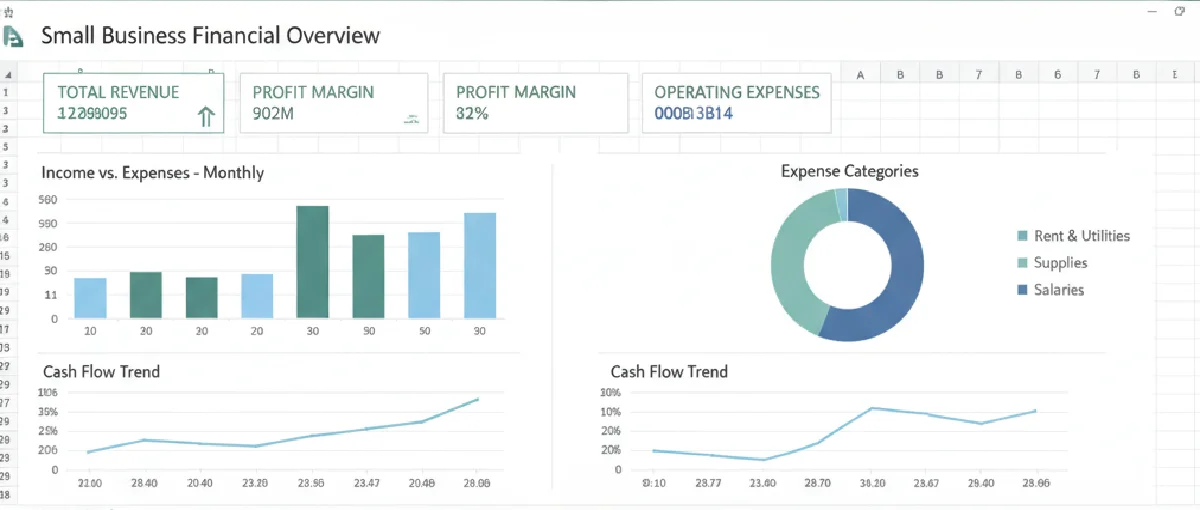
Track Income and Expenses Automatically
Financial clarity starts with knowing exactly where your money comes from and where it goes. Create simple tracking sheets with dedicated columns for:
- Income sources with dates and amounts
- Business expenses categorized by type (marketing, supplies, software, etc.)
- Running totals that update automatically using formulas
- Monthly comparisons to spot trends quickly
Using basic formulas transforms your spreadsheet from a static record into a dynamic financial dashboard:
- SUM() calculates total monthly revenue instantly
- AVERAGE() reveals typical project values
- IF() statements create conditional alerts when spending exceeds thresholds
Pro Tip: Use conditional formatting to highlight profit and loss trends instantly. Set rules that turn profitable months green and challenging months red – giving you visual insights without analyzing numbers manually.
Create Budgets That Adjust as Your Business Grows
Understanding how to use Excel for business budgeting starts with your historical data. Review past expenses to identify seasonal patterns, predict upcoming costs based on trends, and set realistic financial goals backed by actual numbers rather than guesswork. As your business expands, your Excel budgets scale effortlessly – simply add new categories or adjust formulas without migrating to new systems.
Build Quick Dashboards for Instant Clarity
Transform raw financial data into visual insights using charts and graphs. A simple bar chart comparing monthly revenue helps you spot growth patterns immediately. Pie charts break down expense categories, revealing where you’re spending most. These visual dashboards make decision-making faster and more confident because you’re working with clear information rather than overwhelming spreadsheets.
Organize Clients and Projects Like a Pro
Build Client Trackers with Deadlines and Notes
Stop losing track of client details and project status. Create comprehensive client trackers that include:
- Contact information and communication history
- Project deadlines with status indicators
- Deliverable checklists to ensure nothing gets missed
- Notes section for special requests or preferences
This centralized approach means you’ll never scramble to remember client preferences or miss important deadlines again.
Automate Reminders Using Conditional Formatting
Set up automatic visual alerts that highlight approaching deadlines without manual monitoring. Configure rules so tasks due within three days turn yellow, overdue items turn red, and completed projects turn green. These visual cues provide instant status updates every time you open your spreadsheet, eliminating the need to review every line item manually.
Reusable Project Templates You Can Copy Forever
Build once, use forever. Create master templates for common scenarios and duplicate them for each new project:
| Template Type | Purpose |
|---|---|
| Client Onboarding | Standardized checklist for new client setup |
| Project Timeline | Task breakdown with deadlines and dependencies |
| Delivery Tracker | Final deliverable checklist with approval status |
This approach saves countless hours while ensuring consistency across all client work.
Excel for Inventory and Resource Management
Keep Stock Levels Visible at a Glance
Whether you manage physical products or digital resources, Excel for business inventory tracking prevents costly stockouts and overordering. Track current quantities, supplier information, lead times, and cost per unit – all in one organized sheet. Learn how Excel can simplify inventory management here for more detailed guidance.
Use Formulas for Automatic Reorder Alerts
Set minimum stock thresholds for each item, then use conditional formatting to highlight items dropping below these levels. When inventory turns red, you know exactly what needs reordering without reviewing your entire stock list. This automated alert system prevents emergency purchases and helps maintain optimal inventory levels.
Spot Seasonal Sales Patterns to Reduce Waste
Historical inventory data reveals valuable purchasing patterns. Analyze which items sell quickly during specific seasons, helping you optimize ordering schedules and reduce storage costs. This data-driven approach minimizes waste while ensuring you have popular items available when customers want them.
Automate and Analyze for Real Efficiency
Time-Saving Formulas Every Business Should Know
Mastering key Excel automation tips eliminates repetitive manual work:
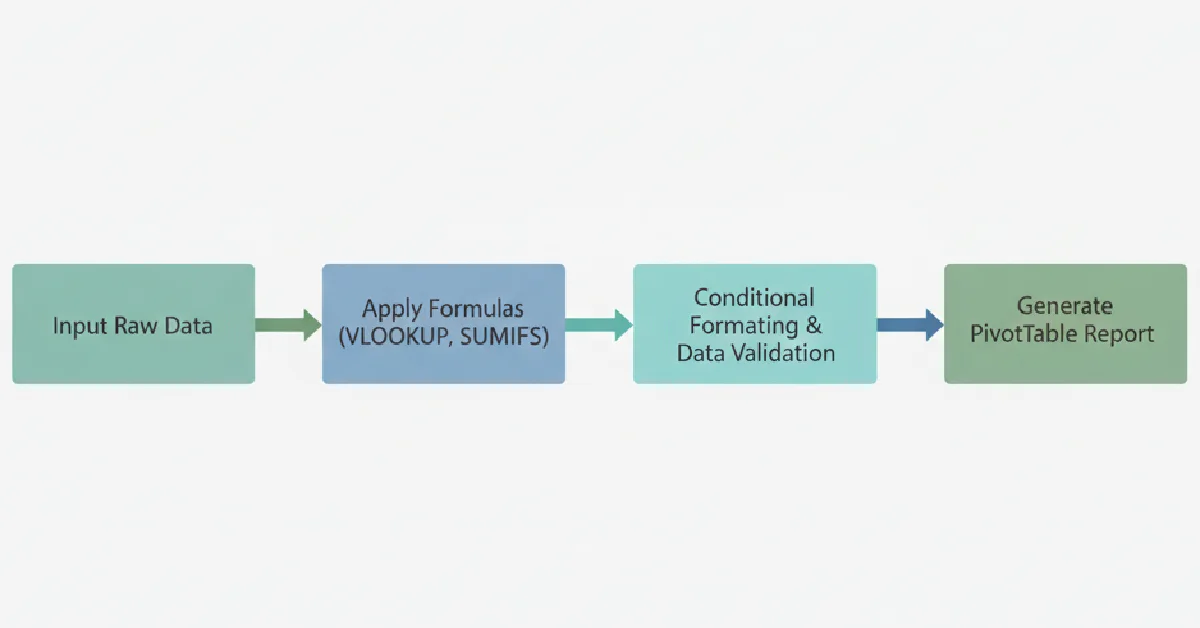
- VLOOKUP pulls client information across different sheets automatically
- COUNTIF tallies completed projects or overdue tasks instantly
- CONCATENATE combines first and last names for mailing lists without typing each one
These functions might seem technical initially, but investing thirty minutes learning them saves hours of manual data entry every week.
Turn Data into Insights with PivotTables
PivotTables summarize months of data in seconds. Compare performance across clients, projects, or time periods without complex formulas. Drag and drop fields to analyze information from different angles, revealing patterns and opportunities you’d miss in standard spreadsheets.
Conditional Formatting: Your Visual Alert System
Transform boring spreadsheets into dynamic dashboards using conditional formatting rules. Automatically highlight overdue invoices, low inventory, high-value opportunities, or any other criteria important to your business. These visual alerts ensure critical information catches your attention immediately rather than hiding in rows of data.
Getting Started: Make Excel Work for You Today
Start Simple – One Sheet at a Time
Avoid overwhelming yourself with complex multi-sheet workbooks initially. Choose one business area causing the most stress – maybe expense tracking or client management – and create a simple solution this week. Master that single system thoroughly before adding complexity.
Mini Action Step: Pick one task – like expense tracking – and create your first sheet today. Spend just fifteen minutes setting up basic columns and entering this week’s data.
Use Microsoft’s Free Templates for Faster Setup
Don’t reinvent the wheel when professional-grade resources already exist. The Microsoft Excel business templates library offers dozens of free templates for invoices, budgets, project timelines, and inventory tracking. Download one, customize it to your needs, and start using it immediately.
Free Learning Resources for Continual Improvement
YouTube tutorials, Microsoft’s help documentation, and community forums provide endless learning opportunities. Invest thirty minutes weekly in expanding your skills – small improvements compound dramatically over time. Explore more tools for small business growth to complement your Excel mastery.
Conclusion: Small Steps, Big Efficiency Gains
Excel for business isn’t just spreadsheet software – it’s your pathway to organized, efficient daily operations without expensive subscriptions or overwhelming complexity. From financial tracking and project management to inventory control and task automation, Excel handles the administrative burden that often overwhelms small business owners.
The beauty lies in starting small and growing sophisticated over time. You don’t need to master every feature immediately. Choose one area causing you the most stress, implement a simple Excel solution this week, and watch how organized data transforms your decision-making and reduces daily overwhelm.
Remember: you don’t have to manage everything manually or invest in expensive software to run an organized business. Sometimes the most powerful solutions are hiding in plain sight on your computer. Start with one Excel template today and experience how small organizational steps create big efficiency gains.
Your future self will thank you for taking control now rather than waiting for the “perfect” moment. Small steps in organization and automation make a bigger difference than you might imagine – and you definitely don’t have to do everything alone.
Written by Muhammed
Muhammed is a graphic designer and virtual support professional with hands-on experience helping small businesses grow through smart marketing and design. He shares practical strategies that save time, build trust, and See how he helps entrepreneurs succeed without overwhelm.